How to Fix iPhone 14 Pro Max Screen Green Flickering?

The iPhone 14 Pro Max is known for its stunning display, powered by advanced OLED technology and ProMotion refresh rates. However, some users have reported an annoying issue: a green flickering or green tint appearing on the screen. This problem can show up randomly, especially in low brightness conditions, during unlocking, or when switching between apps.

Green flickering may be caused by a variety of factors, including software bugs, display driver issues, iOS glitches, or even hardware defects. In some cases, it appears after an iOS update, while in others, it may be linked to display calibration or power management problems.

The good news is that many cases of green screen flickering can be resolved without replacing the device. In this guide, we’ll walk you through practical solutions to fix the issue and restore your iPhone’s display to normal.

1. How to Fix iPhone 14 Pro Max Screen Green Flickering?

1.1 Force Restart Your iPhone

A force restart is the simplest way to eliminate temporary glitches that may be causing the flickering.

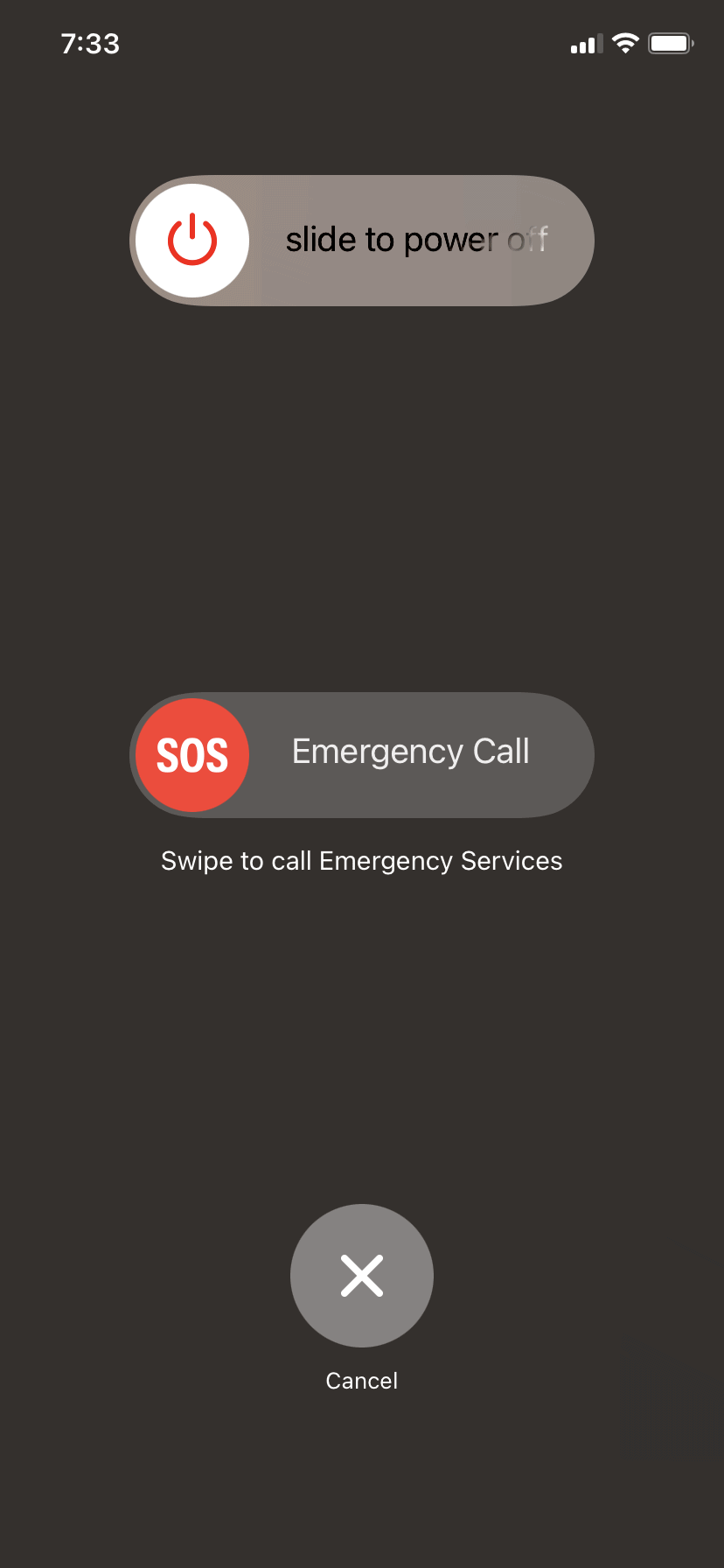
Steps to restart Your iPhone 14 Pro Max Screen:

  • Press and quickly release Volume Up
  • Press and quickly release Volume Down
  • Press and hold the Side button until the Apple logo appears
重新啟動iPhone

This clears temporary system errors and refreshes display processes.

1.2 Adjust Display Settings

Green flickering often appears due to display calibration issues, especially with OLED panels.

請嘗試以下方法:

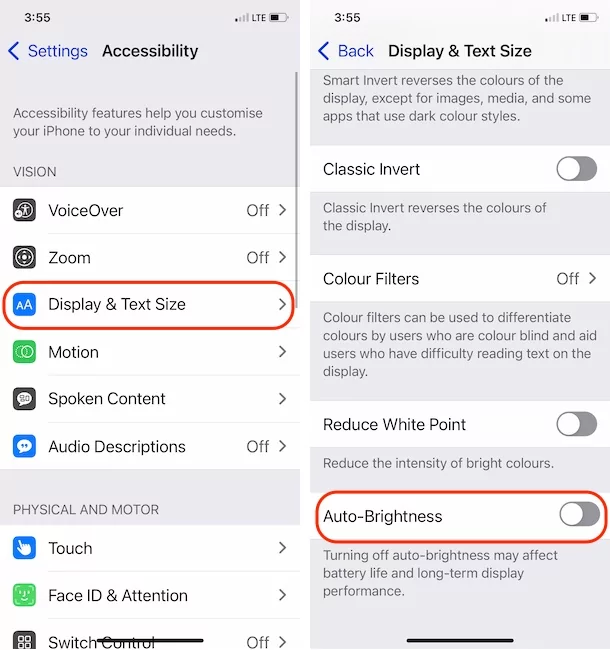
  • 自動亮度 :
    Settings → Accessibility → Display & Text Size
  • Disable True ToneNight Shift
  • Increase brightness slightly (very low brightness can trigger flicker)
turn off auto-brightness

These adjustments can stabilize the display and reduce flickering.

1.3 Update iOS to the Latest Version

Software bugs are a common cause of screen flickering. Apple frequently releases updates to fix such issues.

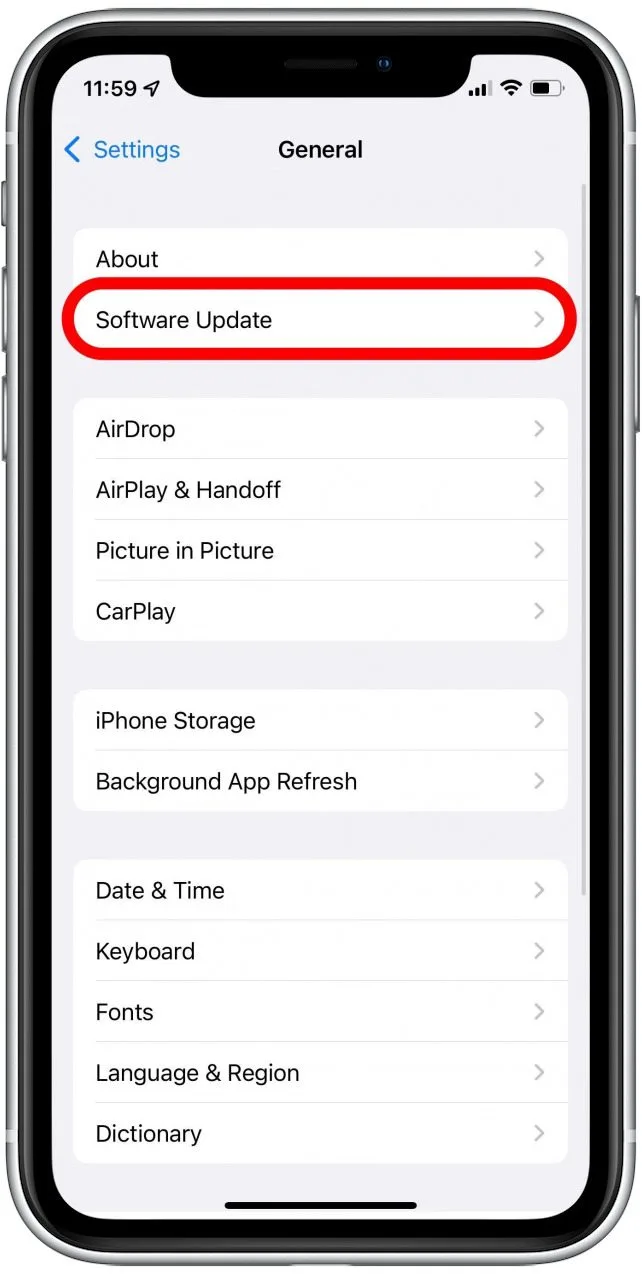
步驟:

  • Go to Settings → General → Software Update
  • Download and install the latest iOS version
iPhone 軟體更新

Keeping your device updated ensures you benefit from bug fixes and display optimizations provided by Apple

1.4 Check for App-Related Issues

Sometimes, flickering occurs only within specific apps.

What to do:

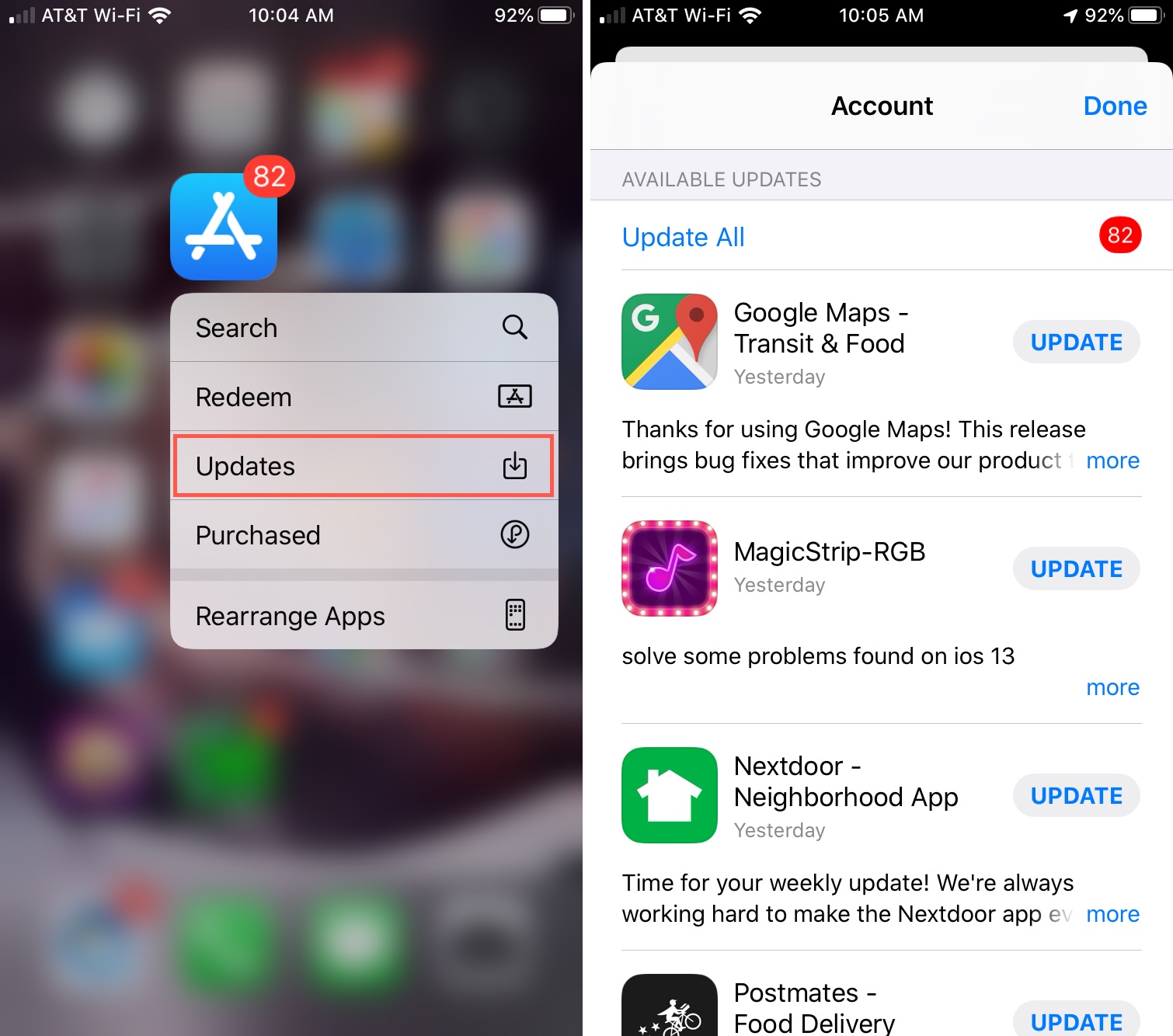
  • Update all apps via the App Store
  • Delete and reinstall problematic apps
  • Check if flickering happens in Safe Mode (by uninstalling suspicious apps)
更新或重新安裝有問題的應用程式

If the issue is limited to certain apps, it’s likely not a hardware problem.

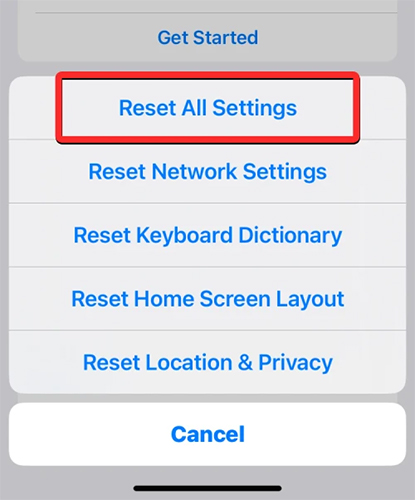
1.5 Reset All Settings

If incorrect configurations are causing the issue, resetting settings can help.

步驟:

  • Go to Settings → General → Transfer or Reset iPhone → Reset
  • 輕敲 重置所有設置
iPhone 重置所有設定

This won’t delete your data but will reset Wi-Fi, display, and system settings to default.

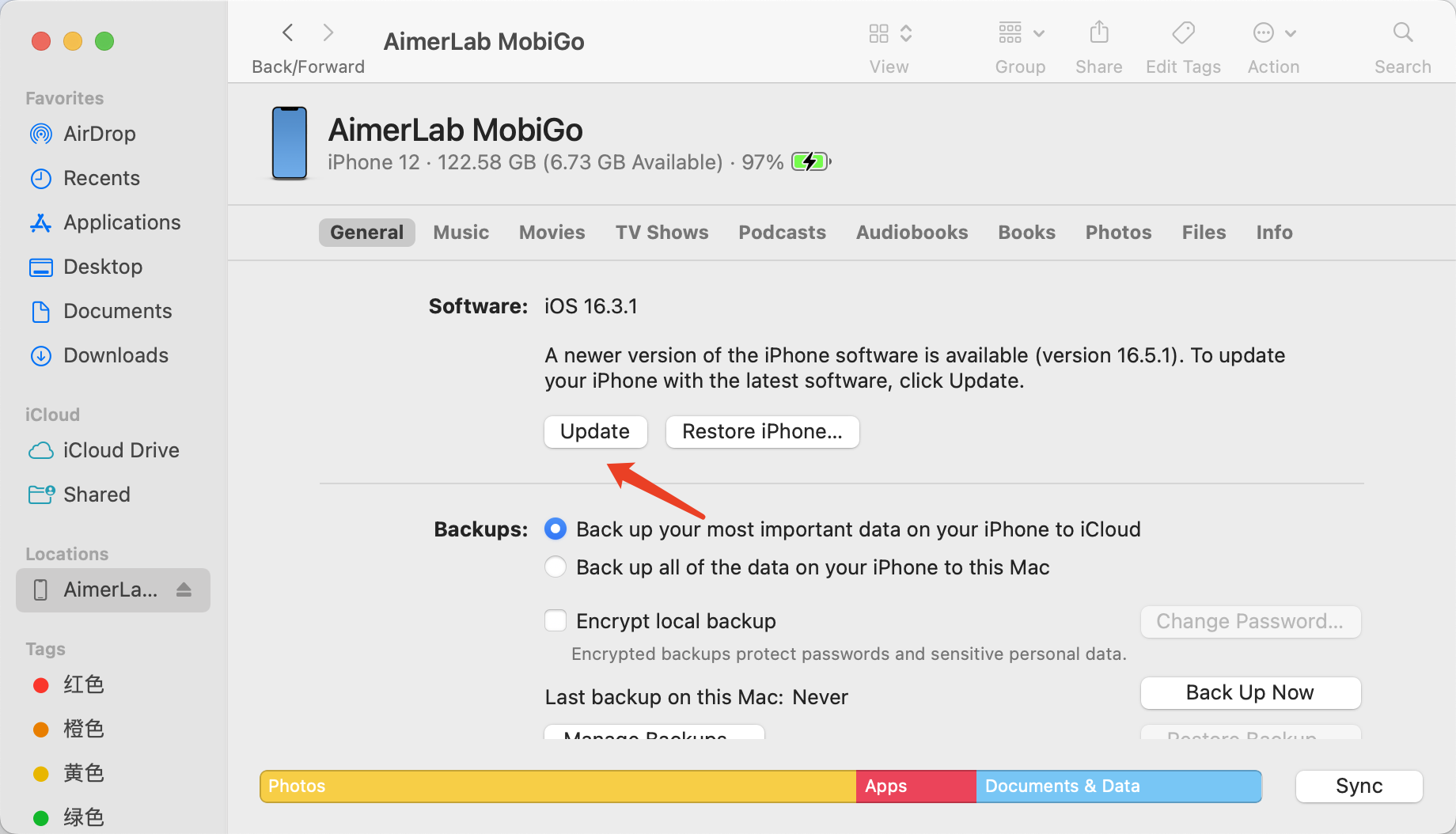
1.6 Use Recovery Mode

If the flickering is caused by deeper system corruption, reinstalling iOS via Recovery Mode can fix it.

步驟:

  • Connect your iPhone to a computer
  • Open:
    • Finder
    • iTunes
  • Enter Recovery Mode (Volume Up → Volume Down → hold Side button)
  • 選擇 更新
Finder 檢查更新

This reinstalls iOS without deleting your data.

1.7 Check for Hardware Damage

If none of the above methods work, the issue might be hardware-related.

Possible causes include:

  • OLED panel defects
  • Loose internal display connections
  • Damage from drops or water exposure

In this case, visiting an Apple Store or authorized repair center is recommended.

2. Bonus: Fix Green Flickering with AimerLab FixMate

If you want a faster and more user-friendly way to fix system-related issues, AimerLab FixMate is a great option. 修復伴侶 is designed to repair iOS system problems without requiring technical expertise. It can resolve issues like screen flickering, boot loops, stuck screens, and more.

FixMate 的主要功能:

  • Fixes 200+ iOS issues, including display glitches
  • Standard Repair Mode (no data loss)
  • Deep Repair Mode for severe issues
  • One-click Recovery Mode entry/exit
  • Compatible with all iPhone models and iOS versions

How to Use FixMate to Fix the iPhone Green Green Flickering:

  • Download the FixMate Windows installer, complete the setup process and run it on your computer.
  • Connect your iPhone via USB, open FixMate and click the Start button on the main interface.
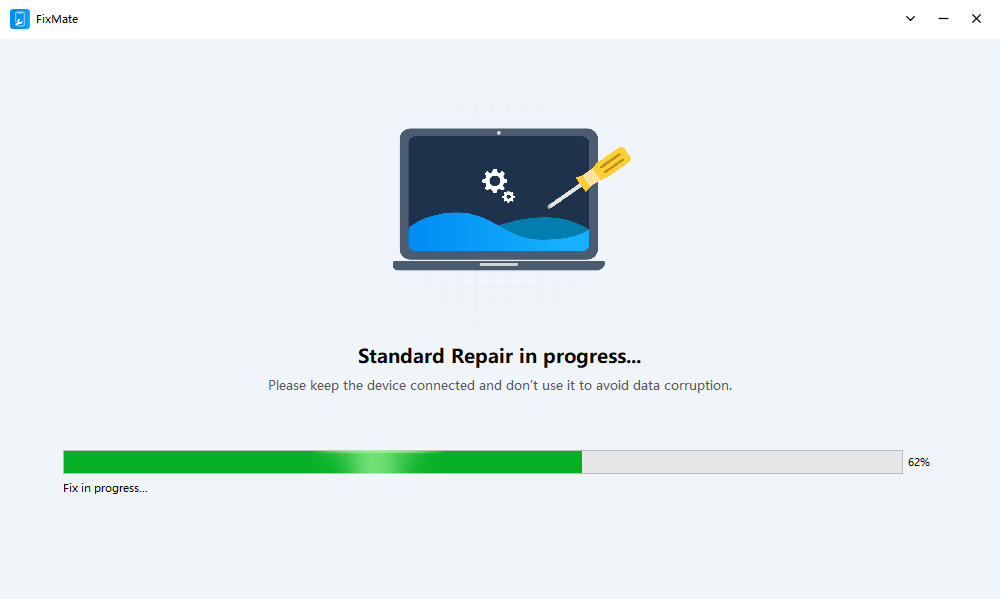
  • Select Standard Repair, then download the appreciate firmware for your iPhone and begin repair.
  • Once the repair process is finished, your iPhone will restart and run ss usual.
標準維修進行中

Within minutes, your iPhone system will be repaired, and the green flickering issue should be resolved.

三、結論

Green flickering on the iPhone 14 Pro Max can be frustrating, but it’s often caused by fixable software issues rather than permanent hardware damage. By trying basic steps like force restarting, adjusting display settings, and updating iOS, many users can resolve the issue quickly. For more persistent problems, Recovery Mode or resetting settings can provide a deeper fix.

However, if you want a reliable and hassle-free solution, using a professional repair tool like AimerLab FixMate is highly recommended. It offers an efficient way to fix system-related issues without data loss and helps restore your iPhone to optimal performance.

With the right approach, you can eliminate screen flickering and enjoy a smooth, vibrant display experience once again.