


如何無需密碼重置iPad?

Forgetting your iPad passcode can be frustrating, especially when you need to access your device but cannot get past the Lock Screen. Whether you’ve entered the wrong passcode too many times, purchased a second-hand iPad that is still locked, or simply cannot remember your password, you may need to reset your iPad to regain access.
In this guide, we’ll explain some effective methods to reset an iPad without a passcode, including their steps, requirements, and important considerations.
Method 1. Reset iPad Without a Passcode Using Recovery Mode
Recovery Mode is an official Apple solution for restoring an iPad that is locked or unavailable. By connecting your iPad to a Mac or Windows computer, you can use Finder or the Apple Devices app to erase the device and reinstall its operating system without entering the screen passcode.
Steps to reset an iPad using Recovery Mode:
- Turn off your iPad completely.
- Connect your iPad to a Mac or Windows computer using a compatible USB cable.
- Put your iPad into Recovery Mode: For iPads without a Home button, quickly press both volume buttons one after another, then hold the top button until the Recovery Mode screen appears; For iPads with a Home button, hold the Home and top (or side) buttons together until the Recovery Mode screen appears.
- Open Finder on your Mac or the Apple Devices app on Windows. If you’re using an older Windows setup, you can use iTunes.
- Select your iPad when it appears on the computer.
- When prompted to choose between Update and Restore, select 恢復 。
- Wait for the computer to download the necessary software and erase your iPad.
- Once the process is complete, disconnect your iPad and follow the onscreen instructions to set it up again.

Method 2. Reset iPad Without a Passcode Using the Lock Screen
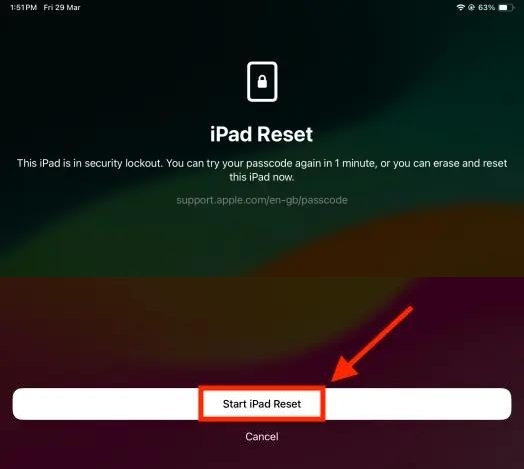
If your iPad runs iPadOS 17 or later, you may be able to erase it directly from the Lock Screen using the Forgot Passcode? option. This method is convenient because you don’t need a computer or additional software.
However, this feature has specific requirements. Your iPad must have Find My enabled before being locked, an active Wi-Fi or cellular connection, and access to the Apple Account password associated with the device.
Steps to reset an iPad from the Lock Screen:
- Enter incorrect passcodes until the Security Lockout or iPad Unavailable screen appears.
- 輕敲 Forgot Passcode? in the bottom corner of the screen, then select Start iPad Reset 。
- Enter your Apple Account password to sign out of your account, then tap Erase iPad to confirm the reset.
- Wait for your iPad to erase its content and settings.
- After restarting, follow the setup instructions to configure your device.
Method 3. Reset iPad Remotely Using iCloud
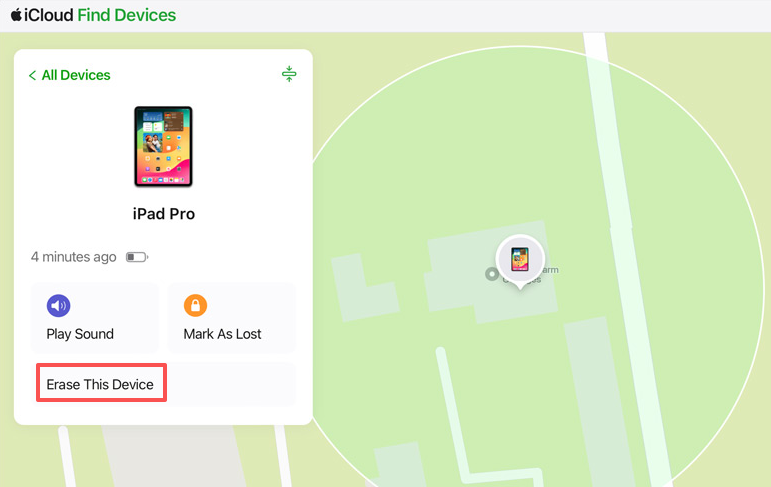
Another convenient way to reset an iPad without a passcode is through Apple’s iCloud Find Devices service. This method allows you to erase your iPad remotely using another phone, tablet, or computer.
It is especially helpful when you cannot physically access your iPad or prefer not to connect it to a computer. However, Find My must have been enabled on the iPad before it became locked.
Steps to reset an iPad using iCloud:
- Open a web browser on another device and visit iCloud Find Devices, then s ign in with the Apple Account associated with your locked iPad.
- Open the device list and select the iPad you want to reset, then choose 擦除該設備 from the available options.
- Review the information and follow the onscreen instructions to confirm the erasure.
- If your iPad is offline, the erase request will remain pending until it connects to the internet.
- Once the erasure is complete, turn on your iPad and follow the setup instructions.
Method 4. Advanced Reset iPad Without a Passcode Using AimerLab FixMate
If the built-in Apple methods seem complicated or you encounter difficulties entering Recovery Mode, a dedicated iOS unlocking tool can provide an alternative.
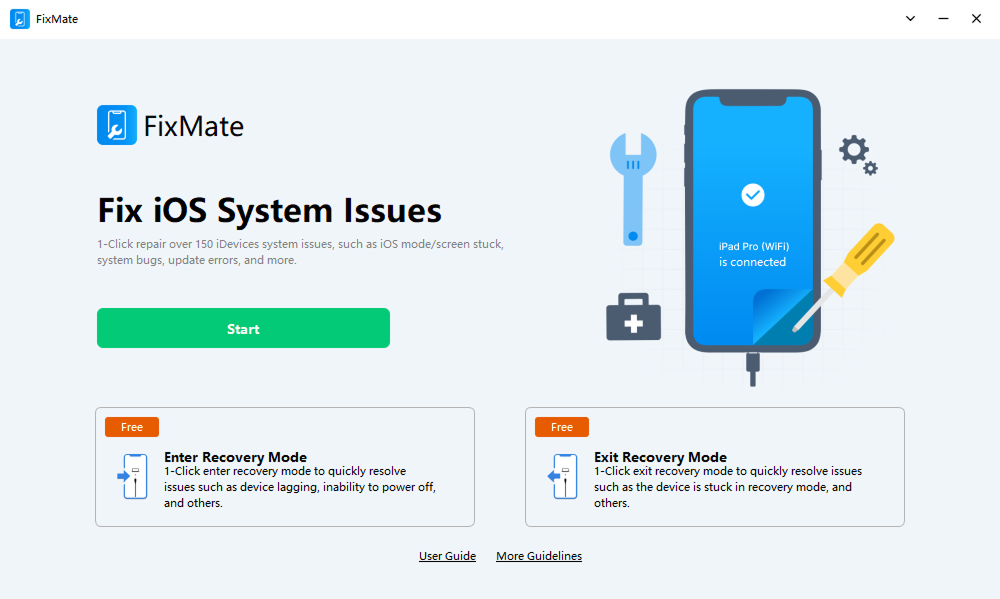
AimerLab FixMate
is a desktop-based iOS repair and unlocking program designed to help users troubleshoot various iPhone and iPad issues.
Key features of FixMate:
- Fix over 150 iOS/iPadOS/tvOS system issues, including frozen screens, boot loops, and update errors.
- Resolve common iOS system problems without losing data.
- Enter or exit Recovery Mode with one click.
- Supports various Apple devices and iOS/iPadOS versions.
Steps to reset an iPad without a passcode using AimerLab FixMate:
- Download, install, and launch AimerLab FixMate on your Windows or Mac computer.
- Connect your locked iPad to the computer using a USB cable, then choose the Standard Mode to continue.
- Download the appreciate firmware package and wait for FixMate to start fixing your iPad issues.
- Once completed, your iPad will restart, allowing you to proceed with the initial setup.
結論
Resetting an iPad without a passcode is possible through several methods, depending on your device model, iPadOS version, and available resources. Recovery Mode is a reliable official option for users with a computer, while the Lock Screen reset feature offers a convenient solution for supported devices. iCloud Find Devices is another useful choice when Find My was enabled beforehand.
However, if you prefer a more guided process or encounter difficulties with Apple’s built-in reset options, AimerLab FixMate is worth considering. Its dedicated passcode removal feature, broad device support, and step-by-step interface make it a convenient option for users dealing with forgotten iPad passcodes. Overall,
AimerLab FixMate
is a practical tool to consider when you need an alternative way to reset a locked iPad and regain access to your device.